
How to Make a Roles Channel in Discord for Web3 Communities
You're staring at a server that's growing faster than your moderation team can keep up. New contributors are arriving from X, Farcaster, Telegram, and event AMAs, and everyone wants the same thing, access to the right channels without waiting for a human to sort it out. In a Web3 community, that bottleneck usually shows up first as a messy member list, then as missed applicants, confused interview prospects, and too many pings in the wrong places.
A roles channel solves that problem by turning onboarding into a self-serve flow. Discord's role system is built on a permission model where access is controlled through server roles, and the usual setup pairs a dedicated channel like #roles or #get-roles with reaction-role bots so members can assign themselves by reacting to a message, with server permissions like Manage Channels and often Manage Roles doing the heavy lifting behind the scenes (CLRN). If you've ever compared Discord with Slack for a community-heavy team, Prompt Builder's practical breakdown of Discord vs Slack for teams in 2026 is a useful lens for why this pattern fits fast-moving Web3 groups so well.
For a community manager, this is more than housekeeping. It's the front door for contributor discovery, role-based access, and career signaling, especially if you're syncing server structure with hiring needs like the community lead opening at Blockchain Jobs.
Introduction to Roles Channels in Discord
A good roles channel feels simple from the outside because the work happened up front. One message welcomes new members, the emoji choices are obvious, and the right people land in the right lanes without staff intervention. Underneath that, Discord is enforcing access through roles, not vibes.
That distinction matters in Web3 servers, where the same person might be a trader, a contributor, a DAO voter, and a job seeker. If you don't make role selection explicit, people drift into the wrong spaces, moderators get buried, and hiring conversations become noisy. A roles channel gives structure to that churn.
The fastest way to think about it is as a permissions interface, not a cosmetic channel. The channel is only useful because it helps people self-identify, then lets Discord apply the rules you defined in Server Settings > Roles. That's why the setup has to start with intent, not with bots or emojis.
Practical rule: if a role isn't tied to a real access decision, don't create it.
That approach is especially useful when you're building pathways for community managers, moderators, designers, and contributors who want a visible track into your team. A clean roles channel can handle part of the onboarding job that would otherwise sit in DMs and manual approvals.
Planning Role Names and Channel Structure
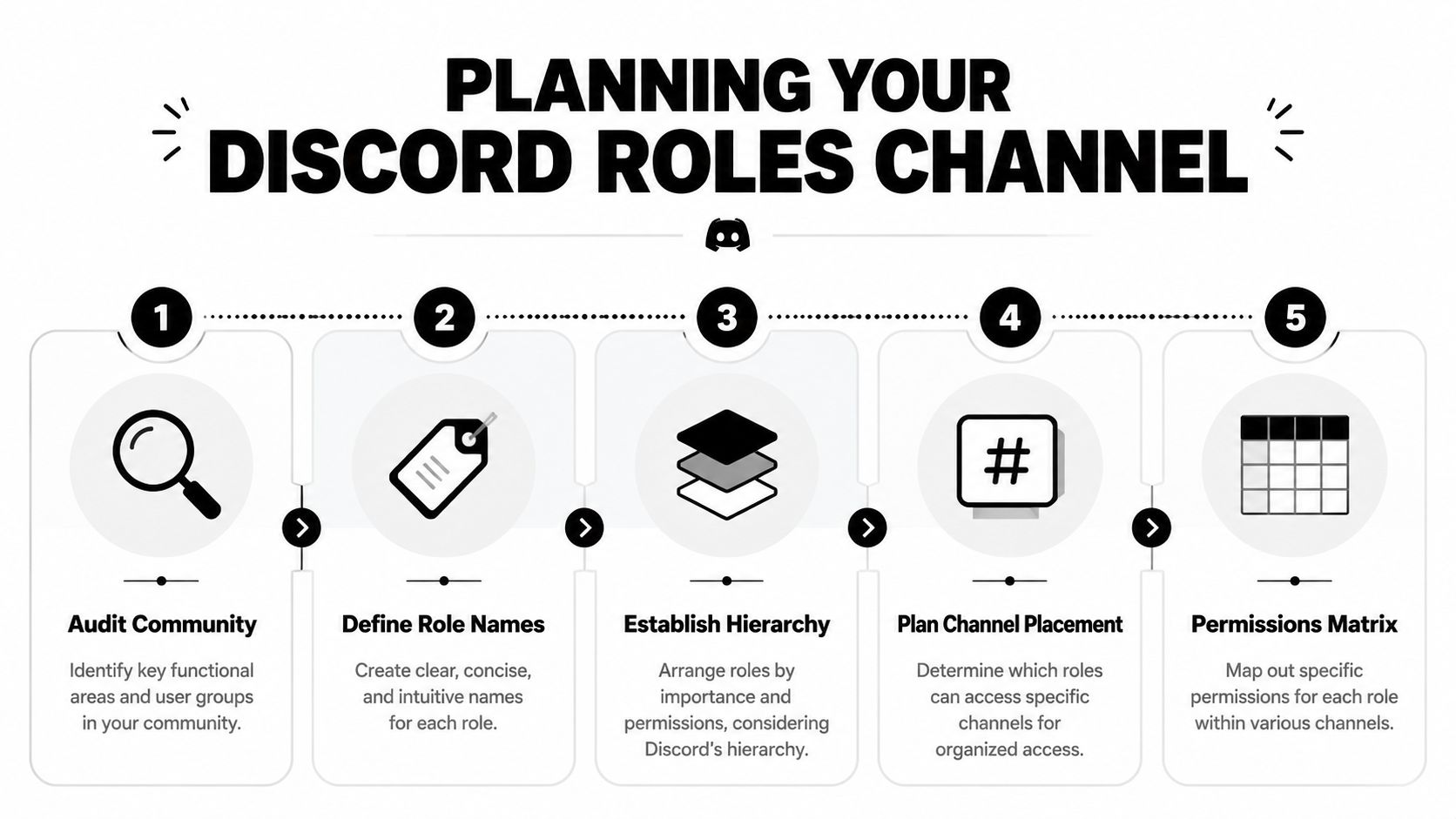
Start by mapping the actual functions in your community, not the fantasy version. In Web3 servers, that usually means categories like Governance, Developer, Marketing, Support, Moderation, and maybe a few lifecycle roles such as Newcomer, Contributor, or Verified Member. The cleaner the names, the easier it is for someone to self-select without asking for help.
Name roles like people will search for them
Role names should be short, literal, and consistent with how your team talks about work. Developer, Designer, Community Mod, and Partnerships are easier to scan than clever labels that look good in a logo mockup but confuse everyone else. If you use colors, use them to support recognition, not to replace meaning.
A smart channel structure also mirrors permission tiers. Casual members might see announcements and public chat, contributors might enter working channels, and core operators might get access to internal coordination spaces. That hierarchy matters because people interpret visibility as trust, and trust as career signal.
Build the channel around member decisions
Your roles channel should tell people what to do in one glance. Keep the topic clear, place the channel near onboarding, and make the role options visible in the order you want people to choose them. If you're running a hiring-oriented community, align those choices with real career tracks, so a member interested in support can also see where that path leads in your ecosystem.
One useful shortcut is to write your roles down before you touch Discord. That keeps you from creating overlapping labels like Ops, Operations, and Community Ops, which only creates confusion later. If a role maps to a job family, keep the naming stable enough that people can recognize it when they scan job listings, interview posts, or contributor calls.
Creating Roles and Configuring Permissions
Treat the role itself as the source of truth, then let the channel enforce access. Create each role in Server Settings > Roles, set the name, color, and permissions, and then think carefully about what should live at the role level versus the channel level. Discord's role-exclusive channel flow uses the same idea, add a channel, open Permissions, and restrict access to selected roles instead of relying on manual moderation (Discord Support).
Set permissions with the smallest safe surface
The mistake I see most often is over-granting at the role level because it feels faster. That usually creates silent problems later, especially if a role accidentally inherits moderation power or visibility into private threads. The safer habit is to keep broad access narrow and push exceptions down into specific channels.
A quick setup order usually works best:
- Create the role first: Give it a clean name and a color that makes sense in the member list.
- Check the hierarchy: Make sure higher-trust roles sit above lower-trust ones, especially if a bot will assign them.
- Build a private test channel: Confirm who can view, speak, and react before exposing the role to everyone.
- Then open the public channel: Only after the access pattern behaves correctly.
Best practice: test in a restricted channel before you publish the role widely.
If you're using the roles channel for hiring or contributor intake, this step protects more than content. It keeps interview-only spaces, compliance notes, and moderation tools from leaking into the wrong hands. This is the primary operational value of the setup, it prevents accidental exposure while giving legitimate members a clear path in.
Setting Up Self-Assignment with Reaction Roles
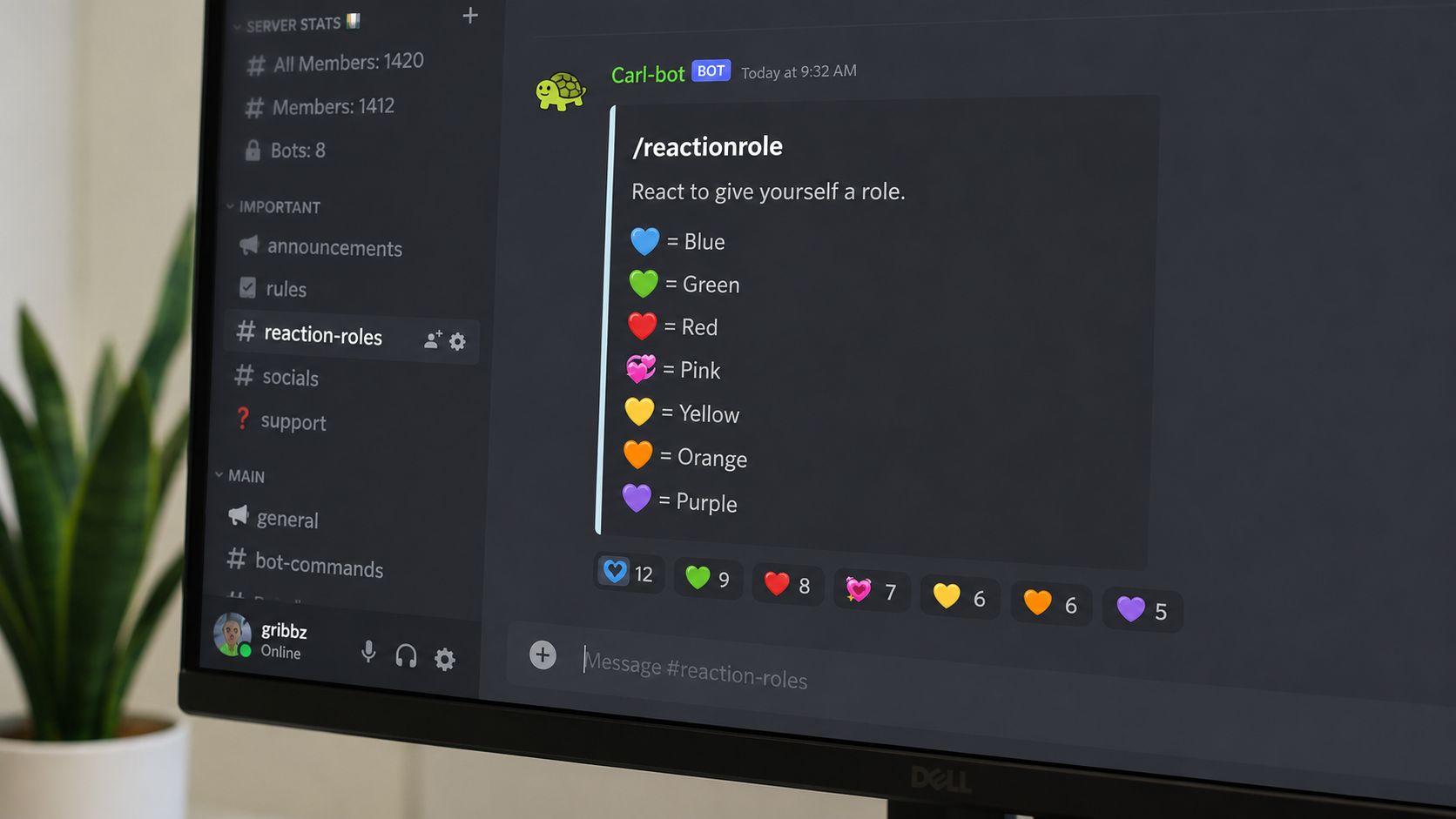
The modern roles channel pattern works because it turns a one-to-one admin task into a one-to-many onboarding flow. Tutorials in current Discord workflows show the common sequence, admins create a role, optionally set it to display separately from online members, then use a bot command or slash command such as /reactionrole to bind emojis to roles in the channel (GeeksforGeeks). That's why this setup scales better than manual assignment.
Pick the workflow your team can actually maintain
Bot-driven self-assignment is the cleanest option when your community is moving fast. Members react, the bot assigns, and staff don't get pulled into repetitive approvals. If your server is small or your moderation load is light, a simpler built-in role menu can work too, but the trade-off is usually less flexibility around presentation and automation.
Use emoji mapping that makes immediate sense:
- 🛠️ for Developer: obvious for builders and contributors.
- 🎨 for Designer: easy to recognize in a crowded channel.
- 🧭 for Governance: useful when you want policy-focused members in one place.
- 🧩 for Support: good for help and troubleshooting roles.
The important part is consistency. If one emoji means one role in one channel, don't reuse it for a different meaning elsewhere.
Keep the bot above the roles it assigns
A lot of broken setups fail for a boring reason, the bot sits too low in the role hierarchy. If the bot can't see or assign the target role, the reaction flow looks alive but does nothing useful. Check hierarchy before launch, then test every role removal as well as assignment so you know the loop works both ways.
Here's a useful shortcut from community work: write the onboarding message like a choice board, not a policy doc. The fewer words a new member has to process, the less likely they are to bounce before choosing a role. If you're aiming at contributors who may later apply for jobs, keep the labels aligned with the responsibilities they'll see in your server.
Testing Role Assignments and Automating Moderation
Before you let the whole server use the roles channel, test it like a release candidate. Use a spare account, a trusted alt, or a new-member test path to verify the reaction flow, the visibility changes, and the role removal behavior. If one role grants access too broadly, you want to find out in a private test channel, not after it's live.
Build a launch checklist you'll reuse
The best launch checklists are boring on purpose. Confirm the channel is visible, the message reacts correctly, the bot responds at the right speed, and the assigned role opens only the channels it should. Then watch for edge cases like users removing reactions, switching roles, or landing in multiple categories at once.
Automation gets more useful when it supports moderation, not when it replaces judgment. A welcome bot can greet members after role assignment, while a logging bot can record role events for later review. If you're running a hiring-facing community, that log also helps you understand which role paths are attracting attention.
Use automation to reduce manual follow-up
The biggest win is simple, fewer DMs asking where to go next. You can set up triggers that welcome newcomers, lock or open channels based on role changes, and remind members where they belong. That makes your team feel responsive even when no moderator is online.
A related benefit is that role-based onboarding keeps community operations cleaner as demand rises. One 2025 market report estimated 66,494 new Web3 roles globally, a 47% year-over-year increase versus 2024, with 21,612 jobs tied to remote U.S. demand (Coincub). That kind of hiring volume is exactly why self-serve role assignment and moderation checks matter.
If you're connecting community talent to real openings, this is a good place to link the lived experience of a community member to work they might pursue, including roles like team lead trust and safety ops in Bangalore at Moonpay. The role channel becomes more than access control, it becomes a routing layer for career intent.
If your test account can't break it, your real users probably won't either.
Best Practices for Web3 Community Management
A mature roles channel doesn't stay static. It evolves with the project, the contributor base, and the kind of work people want to do inside the server. In a 2025 crypto employment report, technical roles make up over 50% of crypto jobs, while product, operations, compliance, and marketing are rising (Gate Research). That mix should shape your labels, not just your org chart.
Keep roles tied to real progression
If your community wants to support mentorship, internal mobility, or eventual hiring, make the role structure reflect that path. A newcomer should be able to see how they move from casual participation to meaningful contribution, and from contribution to interview readiness. That works best when role names correspond to actual job families, not vague status markers.
Review, retire, and clarify
Old roles linger longer than they should. Retire labels that no longer map to active work, merge duplicates, and document what each role means in plain language. Clear guidelines reduce confusion and make moderation easier, especially when your team changes.
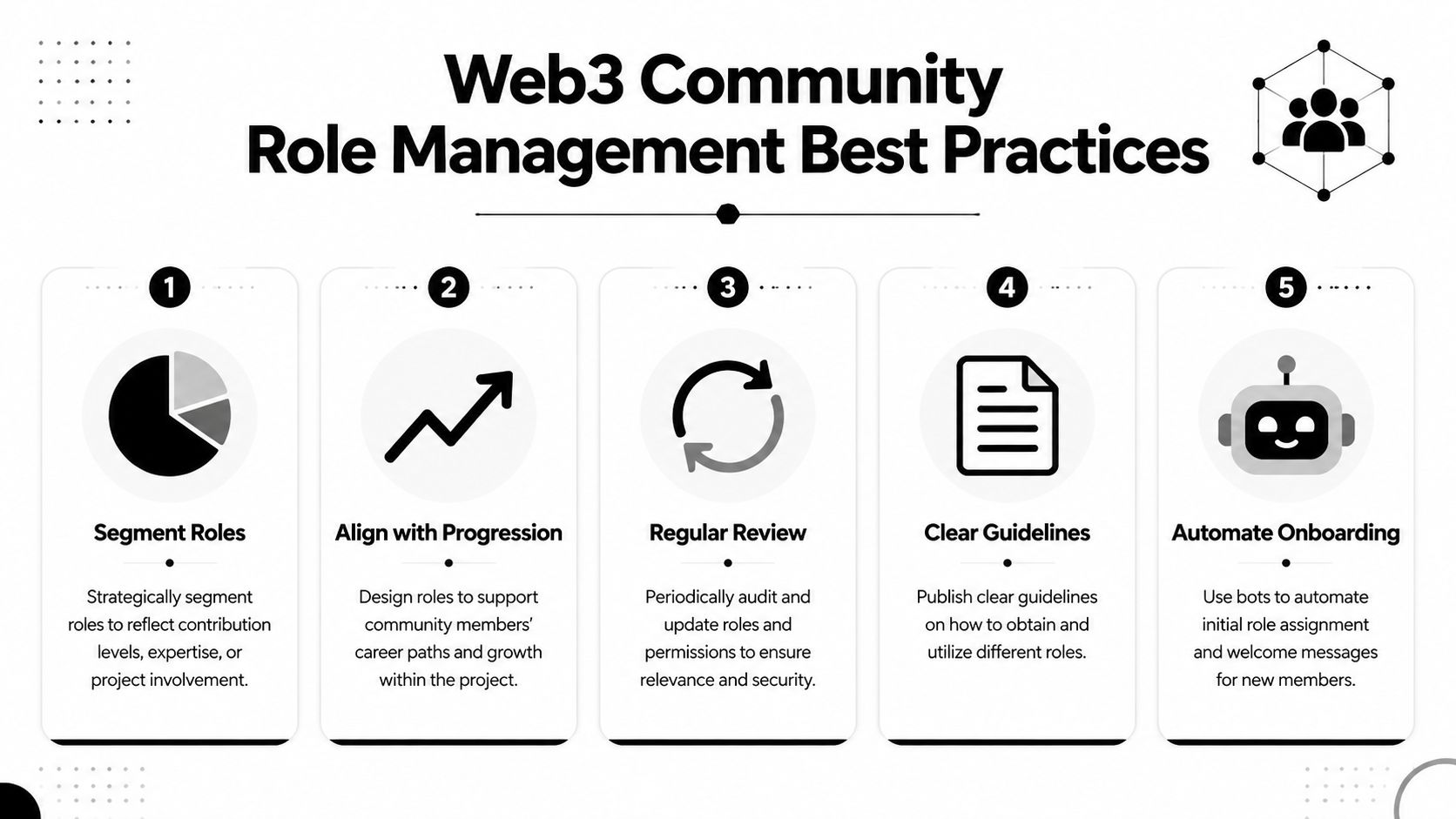
A simple operating rhythm helps:
- Segment roles: Separate functional contribution areas from access tiers.
- Align with progression: Make it obvious how members grow into more responsibility.
- Review regularly: Audit permissions and role relevance before drift turns into risk.
- Publish clear rules: Explain how members earn or request each role.
- Automate onboarding: Let bots handle repetitive assignment and welcome flows.
If you're tracking community work alongside external hiring signals, it helps to keep your internal role language close to the market. The rising importance of product, compliance, and marketing roles means your Discord labels should make those paths visible instead of burying them.
For teams that want to connect member activity with broader talent operations, Manage AI employee connections can be useful context when you're thinking about how people move from community engagement to actual work.
You can also sanity-check your server design against real hiring demand by browsing a role like content, social, and community manager at Blockchain Works and asking whether your roles channel helps someone grow into that kind of responsibility. If it doesn't, the structure is too vague.
Conclusion and Next Steps
A solid roles channel does three jobs at once. It reduces moderation load, improves access control, and gives members a clearer path from newcomer to contributor. When the permissions are right and the self-assignment flow is simple, the server feels calmer and more professional.
The best setups start with real role names, test privately before launch, and keep automation in service of human judgment. That's the part most Discord tutorials miss, the channel is also a hiring and progression tool when you design it around what your Web3 community is trying to build.
If you're ready to turn your Discord structure into something that supports hiring, contributor discovery, and long-term growth, start exploring open Web3 roles on Blockchain Jobs.